
About HWi
HWI – Hardware Info is a simple and powerful PC hardware information tool designed to help you quickly check the specifications and status of your Windows computer. With HWI, you can view essential information about your CPU, memory, storage, graphics, battery, display, operating system, and other hardware components from one clean and easy-to-use interface.
The CPU test and processor information section provides detailed information about your processor, including CPU name, manufacturer, architecture, physical cores, logical processors, maximum clock speed, cache, virtualization status, and processor ID. HWI also displays live CPU load, allowing you to quickly check how much of your processor is currently being used while running applications or performing demanding tasks.
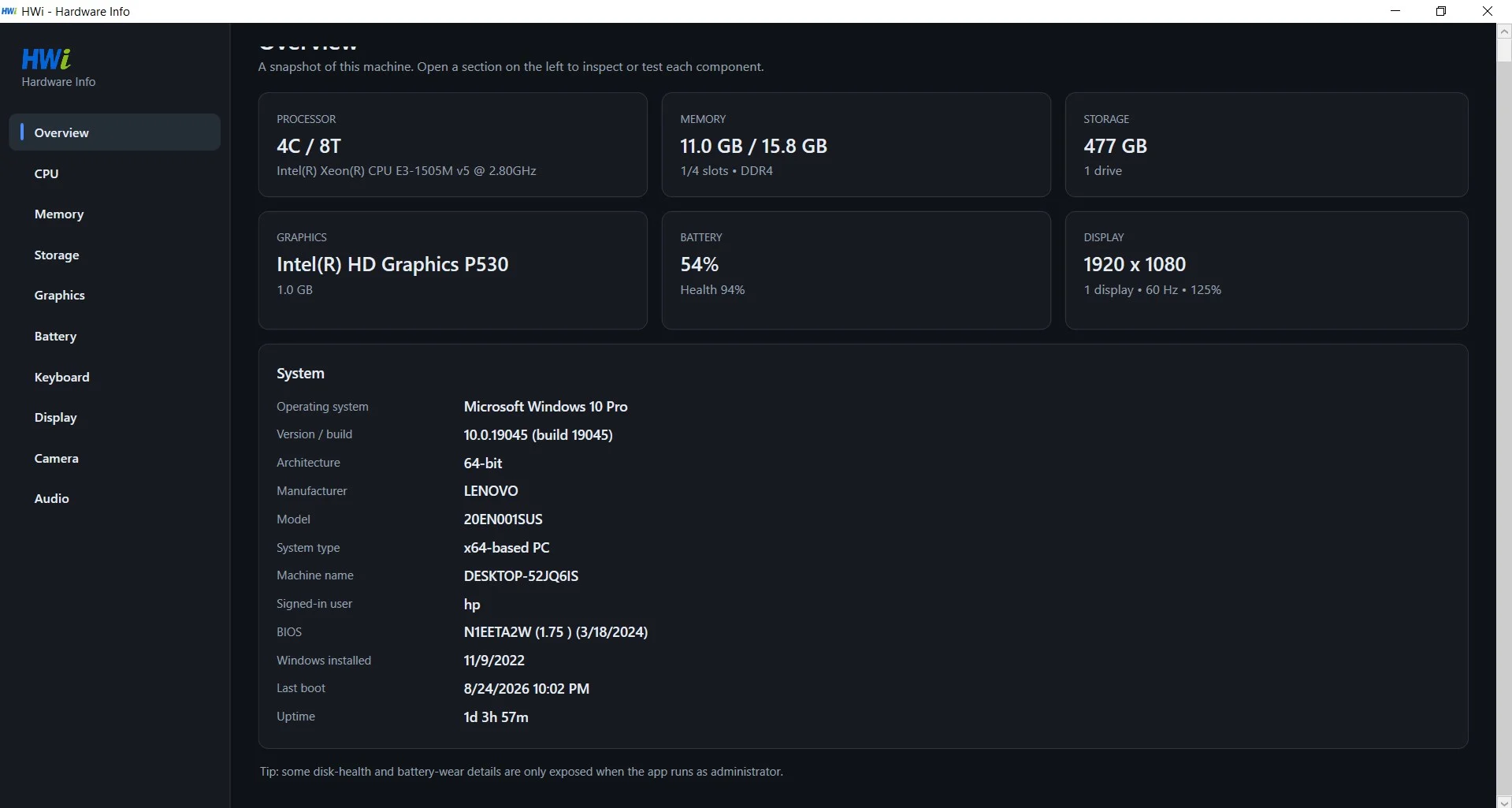
HWI Hardware Info makes it easy to understand the overall configuration of your PC without searching through multiple Windows settings and system utilities. The overview dashboard provides important hardware details at a glance, including installed and available RAM, disk capacity, graphics hardware, battery level and health, screen resolution, Windows version, computer manufacturer, model, BIOS information, and system uptime.
Whether you are troubleshooting a slow computer, checking a used laptop, verifying system specifications, monitoring CPU usage, or simply learning more about your PC, HWI provides the information you need in one convenient place. The straightforward interface makes Hardware Info useful for beginners, technicians, PC enthusiasts, developers, and anyone who wants a fast way to inspect their Windows hardware.
If you are searching for HWI, HardwareInfo, HWInfo, CPU test, CPU checker, PC hardware information, system information, computer specifications, processor information, RAM information, battery health, or hardware monitoring, HWI provides an easy way to inspect your computer and understand its hardware configuration.
Frequently Asked Questions:
1-How to check CPU information on Windows?
Open HWI – Hardware Info and select the CPU section. HWI displays your processor name, manufacturer, architecture, physical cores, logical processors, maximum clock speed, cache, virtualization status, and other CPU details.
2-How to test CPU usage and check live CPU load?
Open the CPU section in HWI to see your current CPU load in real time. The live CPU usage indicator helps you check how heavily your processor is being used while running programs, games, or other tasks.
3-How to check PC hardware specifications?
Launch HWI and open the Overview page. You can quickly view your computer’s CPU, RAM, storage, graphics, battery, display resolution, Windows version, system model, BIOS information, and other important hardware specifications.
4-How to check RAM, storage, and graphics information?
Use the Memory, Storage, and Graphics sections in HWI. These pages provide information about your installed memory, disk drives, available storage, graphics hardware, and other related system details.
5-How to check laptop battery health and system information?
Open the Battery section in HWI to check your current battery level and available battery health information. You can also use the Overview page to see Windows version, manufacturer, computer model, BIOS version, system uptime, and other system information.